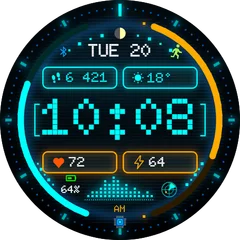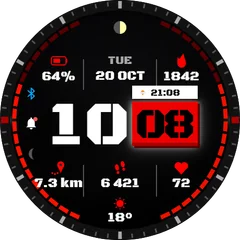
Tactical Orange Digital
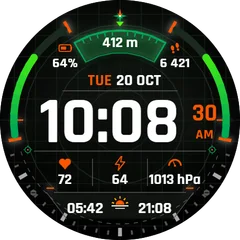
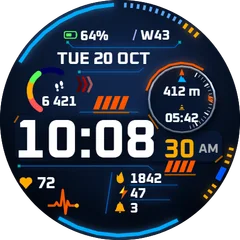
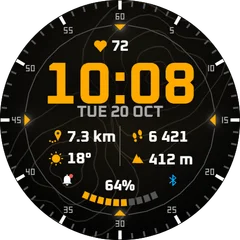
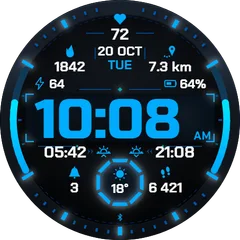
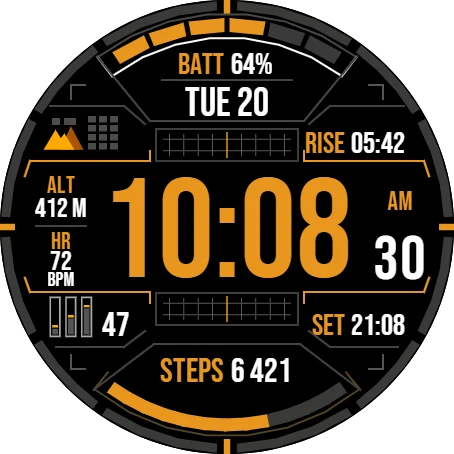
Tactical Orange Digital is a digital watch face designed for everyday wear. Everything important is visible at a glance, and you can make it yours from your phone.
Get it in the Connect IQ StorePrice in store
Tactical 1 + 1- Works on
- 103 watches
- In store since
- 11 November 2026
- Updates
- once a minute
Tactical 1 + 1
Buy any tactical face and take a second tactical face free.
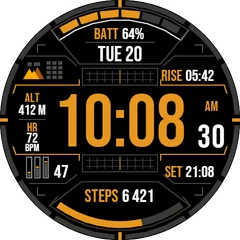 Tactical Orange DigitalYou buy
Your free pickChoose one below
Claim my free facePick the free face first.
2Pick one free
How do I get the free face?
- Buy the first face in the Connect IQ Store as usual.
- Pick the free face here and press the button. It opens an e-mail with everything filled in.
- Attach the store receipt (a screenshot is fine) and send. Within 24 hours you get an unlock code.
On the face
- Battery
- Sunrise
- Altitude
- Heart rate
What it does
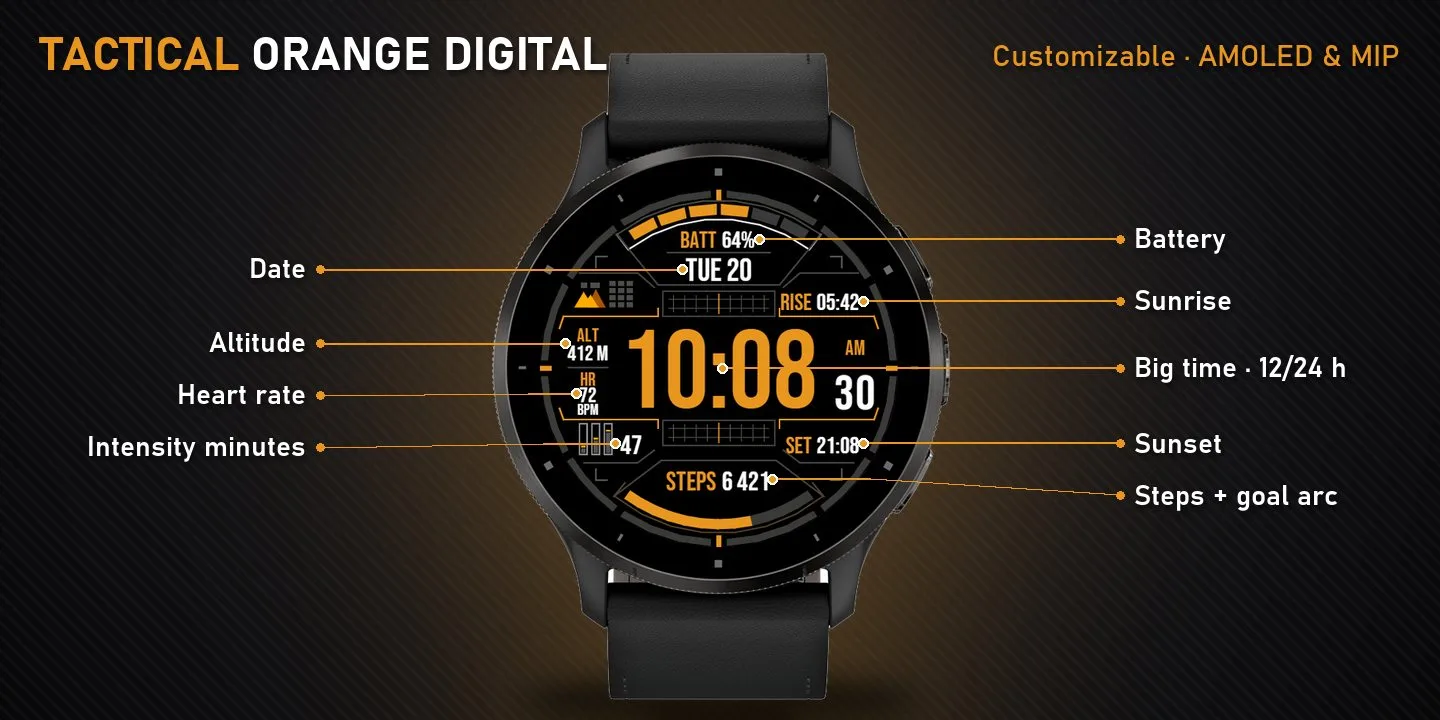
- Large, easy-to-read digital time with 12/24 h support and AM/PM, seconds
- Weekday and date
- 7 data fields: Battery, Sunrise, Altitude, Heart rate, Intensity minutes, Sunset, Steps
- Goal progress arcs: Steps, Battery
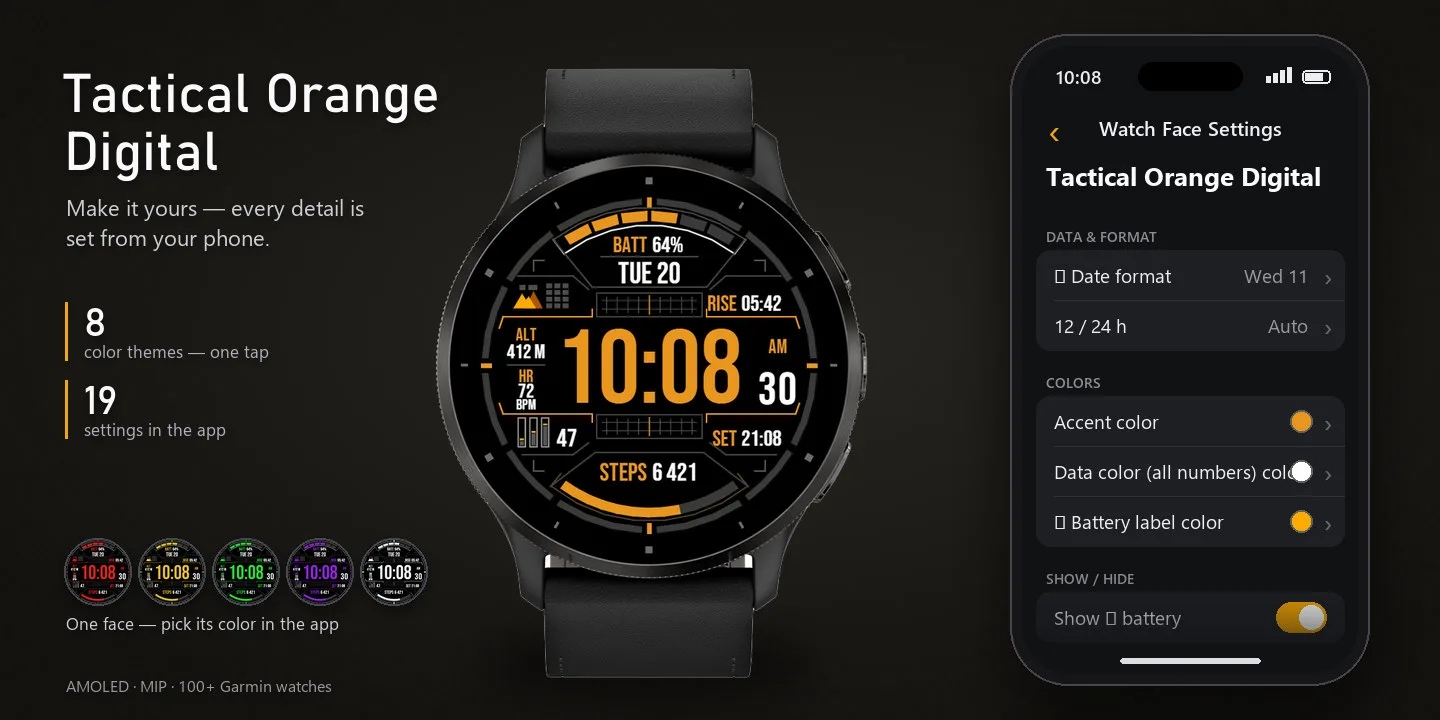
- Accent color: recolor the whole face in one tap (8 colors)
- 17 settings - show/hide, colors and formats
- Optimized for AMOLED and MIP displays, 103 Garmin watches
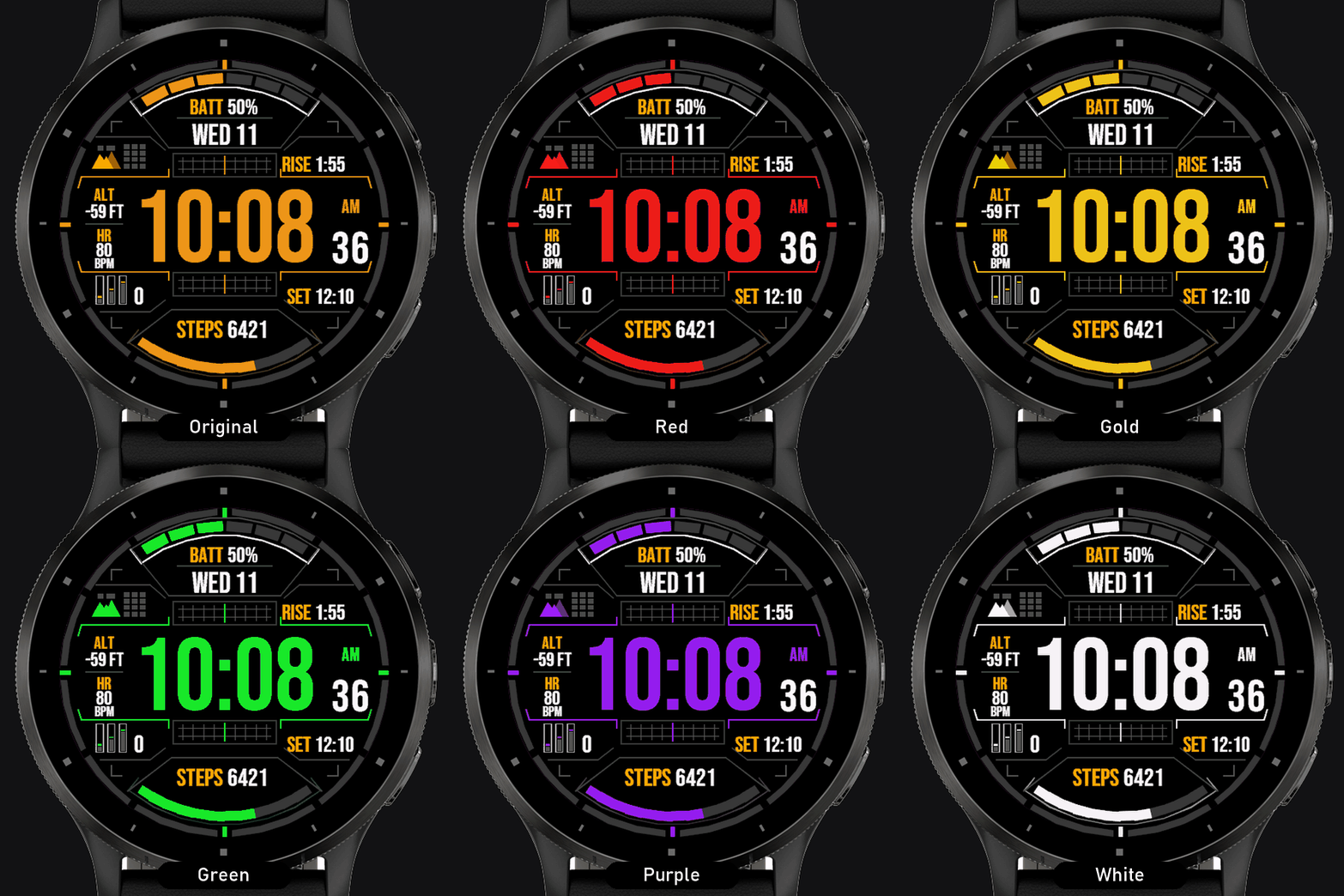
One setting changes the colour
Pick an accent colour in the Garmin Connect app and the whole face follows.
Works on 103 watches
51 with AMOLED displays and 52 with MIP displays. Pick yours and the site remembers it.
fēnix
- fēnix 8 47mm / 51mm / tactix 8 47mm / 51mm / quatix 8 47mm / 51mm
- fēnix 9 Pro 51mm
- fēnix 8 Pro 47mm / 51mm / MicroLED / quatix 8 Pro 47mm / 51mm
- fēnix 9 47mm / 51mm
- fēnix 9 Pro 47mm
- fēnix 8 43mm
- fēnix 9 43mm
- fēnix 9 Pro 43mm
- fēnix E
- fēnix 6X Pro / 6X Sapphire / 6X Pro Solar / tactix Delta Sapphire / Delta Solar / Delta Solar - Ballistics Edition / quatix 6X / 6X Solar / 6X Dual Power
- fēnix 7X / tactix 7 / quatix 7X Solar / Enduro 2
- fēnix 7X Pro - Solar Edition (no Wi-Fi)
- fēnix 7X Pro
- fēnix 8 Solar 51mm / tactix 8 Solar 51mm
- fēnix 9 Pro Solar 51mm
- fēnix 6 / 6 Solar / 6 Dual Power
- fēnix 6 Pro / 6 Sapphire / 6 Pro Solar / 6 Pro Dual Power / quatix 6
- fēnix 7 / quatix 7
- fēnix 7 Pro - Solar Edition (no Wi-Fi)
- fēnix 7 Pro
- fēnix 8 Solar 47mm
- fēnix 9 Pro Solar 47mm
- fēnix 6S / 6S Solar / 6S Dual Power
- fēnix 6S Pro / 6S Sapphire / 6S Pro Solar / 6S Pro Dual Power
- fēnix 7S
- fēnix 7S Pro
Forerunner
- Forerunner 965
- Forerunner 265
- Forerunner 570 47mm
- Forerunner 970
- Forerunner 165
- Forerunner 165 Music
- Forerunner 170
- Forerunner 170 Music
- Forerunner 570 42mm
- Forerunner 70
- Forerunner 265s
- Forerunner 255
- Forerunner 255 Music
- Forerunner 955 / Solar
- Forerunner 245
- Forerunner 245 Music
- Forerunner 745
- Forerunner 945
- Forerunner 945 LTE
- Forerunner 255s
- Forerunner 255s Music
- Forerunner 55
MARQ
Instinct
epix
How to install
- Press “Get it in the Connect IQ Store”. On a phone it opens in the Connect IQ app.
- Press Install and pick your watch. The face arrives at the next sync.
- Hold the top-left button on the watch, choose Watch Face, select Tactical Orange Digital.