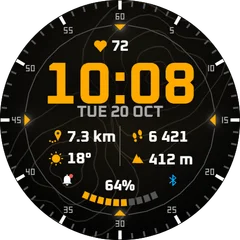
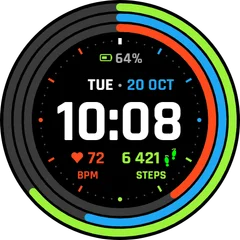
How to change colours and data fields on a Garmin watch face
Most Connect IQ faces let you pick the accent colour and what each slot shows. Here is where those settings live.
3 min read · updated 21 November 2026
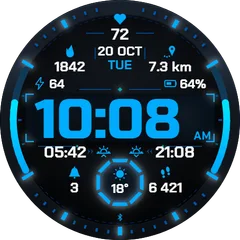
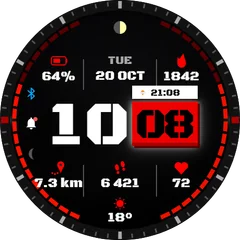
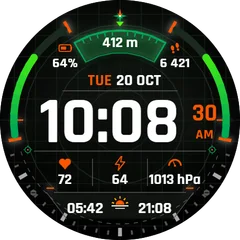
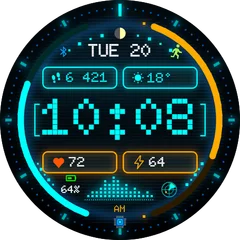
A face is more than a picture: the author decides which parts you can change. Typical options are the accent colour, the data in each slot (steps, heart rate, battery, weather), 12 or 24 hour time and whether seconds show.
In the Connect IQ app (phone)
- Open the Connect IQ Store app and go to My device.
- Choose Watch faces and tap the face.
- Tap Settings, change what you like and press Save. The watch updates within a few seconds while it is connected.
In Garmin Connect
- Open the watch in Garmin Connect.
- Go to Watch Faces (or Connect IQ apps on some versions).
- Pick the face and open its settings.
On the watch
Some newer watches show the settings directly: in the watch face list, select the face and look for Customize. If it is not there, use the phone.
Settings do not save?
- Keep the watch connected to the phone while saving. Bluetooth must be on.
- Update the Connect IQ app. Old versions sometimes show settings that never reach the watch.
- Switch to another face and back. That forces the face to reload its settings.
Questions
Why does my face have no settings?
The author did not add any, or the face is so simple there is nothing to change. The face page usually lists what can be customised.